Convert images to WebP from Finder in macOS, thanks to Automator and Quick actions
This blog's key to lightness
On this blog, I often publish screen captures, pictures or AI generated images. Most of the time, I get files in JPEG or PNG format. Both are good, but not as optimized as I’d like for a thrifty static website. WebP is better for that, can be lossless and is widely supported.
Keep it lean
I could rely on Astro, which optimizes files during build. But this means I’d have to store large files with the source code and host them in my repositories. In such a situation, I prefer to solve “by design”.
I used to convert to WebP with GIMP but it’s a manual job and it can be a pain, especially with a lot of files to process. So I looked for an easier solution, on macOS (where I spend most of my Desktop time these days).
The file explorer (Finder) has a built-in tool for such tasks in its Quick actions menu. Unfortunately, output formats supported are only HEIF, JPEG and PNG. But macOS is extensible, so you can add your own quick actions through another built-in tool: Automator.
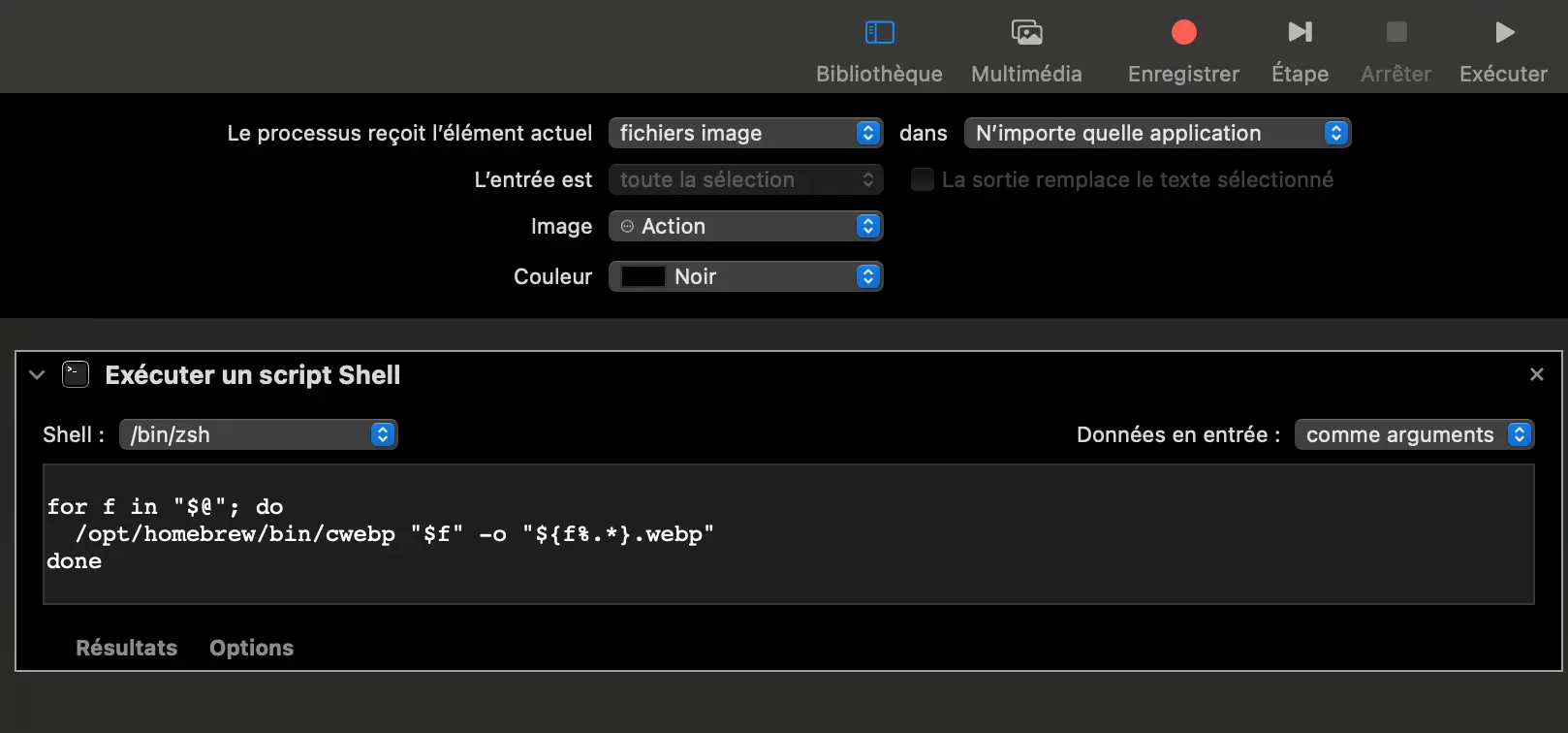
cwebp in a Shell script, 1-click away
As its name suggests, it allows you to create lots of automations within the system. Here, we are looking for a way to select files in the Finder and convert them to the WebP format after clicking on a menu entry.
The conversion part will be handled by cwebp, which you can install with HomeBrew:
brew install webpCheck the targeted binary (it should be /opt/homebrew/bin/cwebp):
which cwebp
Then, we need to create a Quick action in Automator and add (with a double click) Execute a Shell script. Select image files and Finder in the process input, /bin/zsh as Shell, Arguments as data input and paste this script:
for f in "$@"; do
  /opt/homebrew/bin/cwebp "$f" -o "${f%.*}.webp"
done
Change the cwebp path if needed. Save the action (⌘+S), name it (Convert to WebP for example), it’s now available! I tried this on 4 Dall-E generated images: I went from 12.9 MB to 909 kB, quite impressive.
Automate all the things!
Now I need to explore how I can use Automator (and Shortcuts) more on my Apple systems. This is definitely one of my good resolutions for 2024.
← → jump to the previous / next post